Navigate inventory
2 mins read.
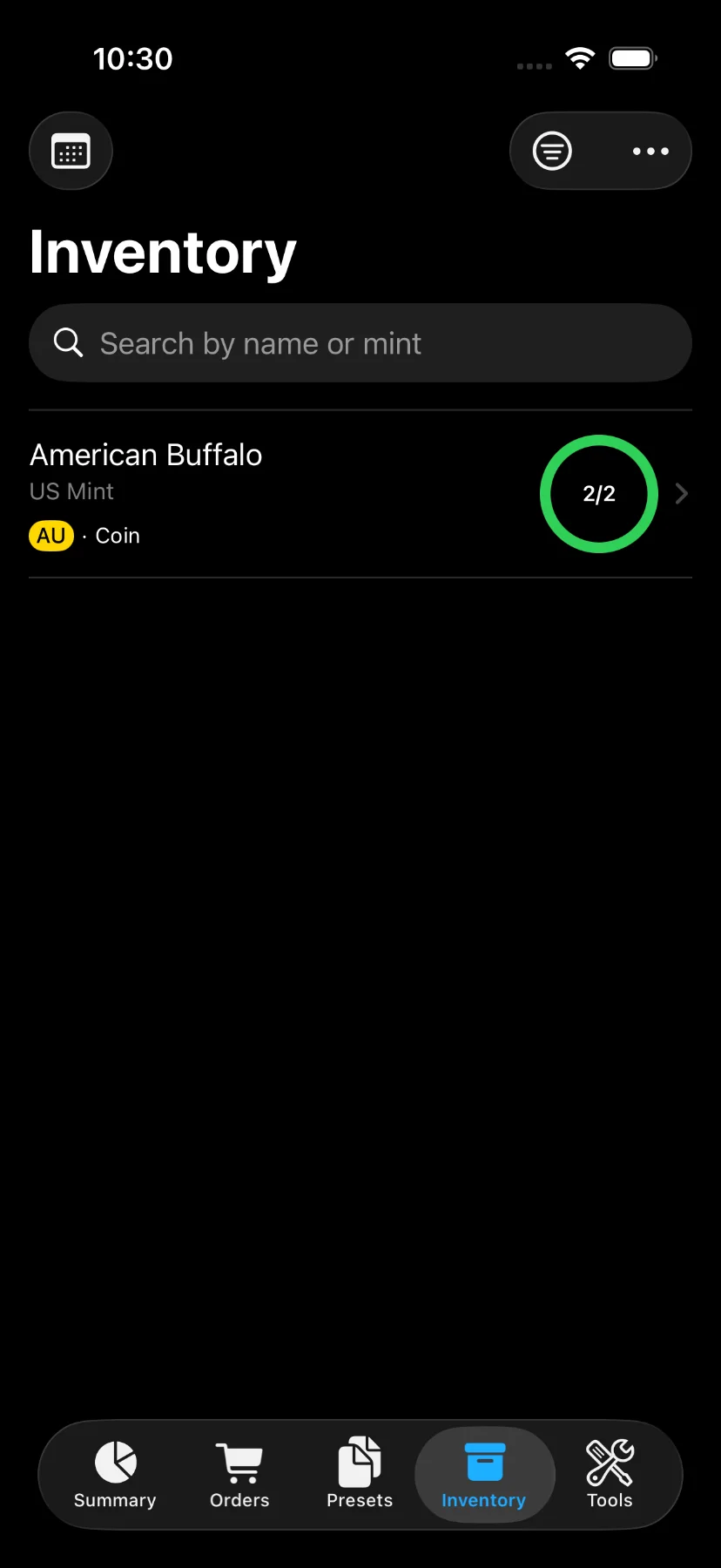
The “Inventory” tab gives you a consolidated view of everything you own, grouped by bullion type. Each row shows the bullion name, mint, metal, form factor, and a stock indicator with the number of units still in stock out of the total purchased.
1) Tap on the “Inventory” tab.
Search and filter
Use the search bar to find items by name or mint. Tap the filter icon to open the filters sheet, where you can narrow down results by:
- Metal (Gold, Silver, Platinum, Palladium, Copper)
- Form Factor (Coin, Bar, Round, Jewelry)
- In-Stock: show only bullions with available stock.
- Date Range: show only bullions with purchases or sales within a selected date range.
Tap the sort menu to order the list by Name or Stock, ascending or descending.
The filter icon appears filled when one or more filters are active.
Bullion detail
2) Tap on a bullion to open its detail screen. The top of the screen shows the total stock weight in troy ounces and grams, along with the current offer price and summary metrics such as average premium over spot and total sales gain or loss.
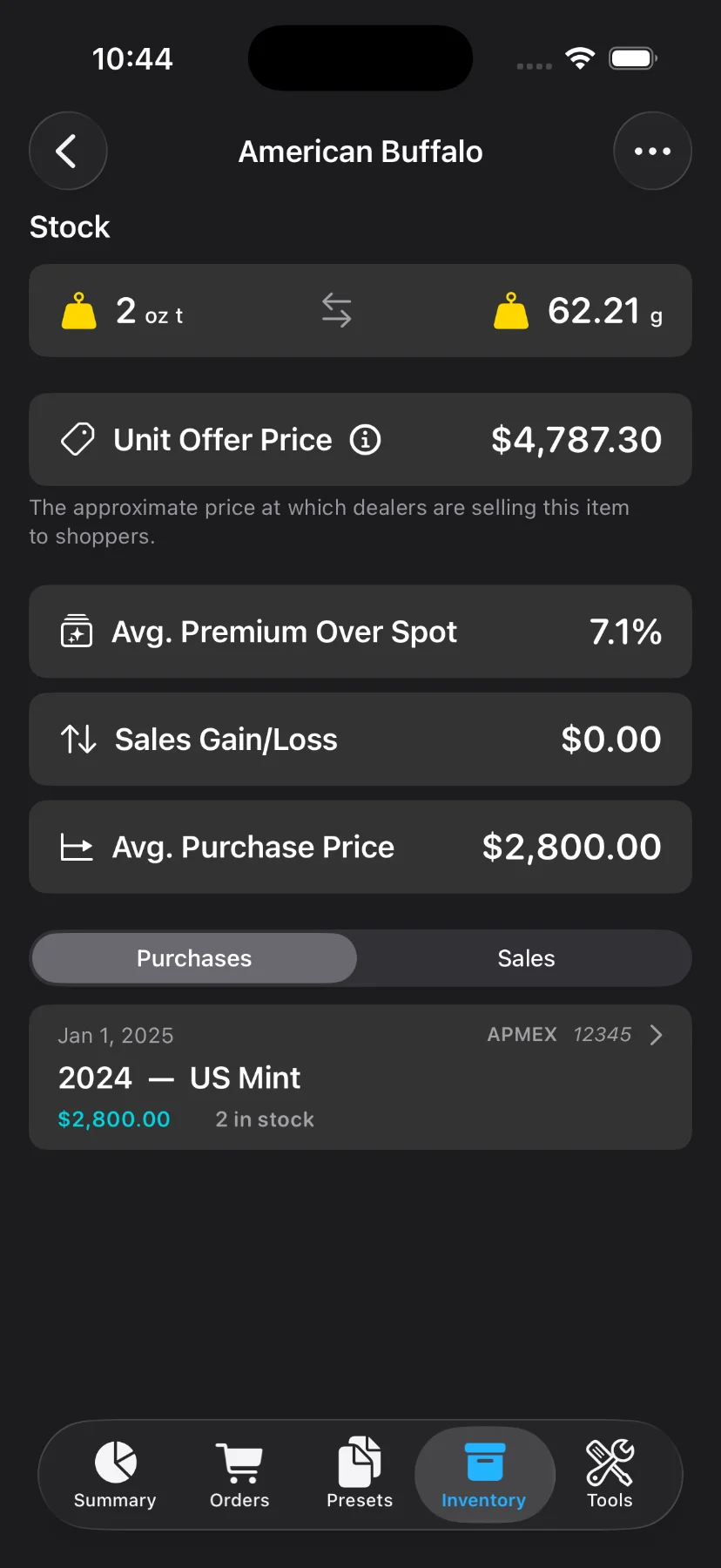
The detail screen is divided into two tabs:
- Purchases: all purchase records for this bullion.
- Sales: all sales recorded against this bullion.
Purchases tab
Each row in the Purchases tab shows the order date, seller, invoice number, item year, unit cost, and how many units from that purchase are still in stock.
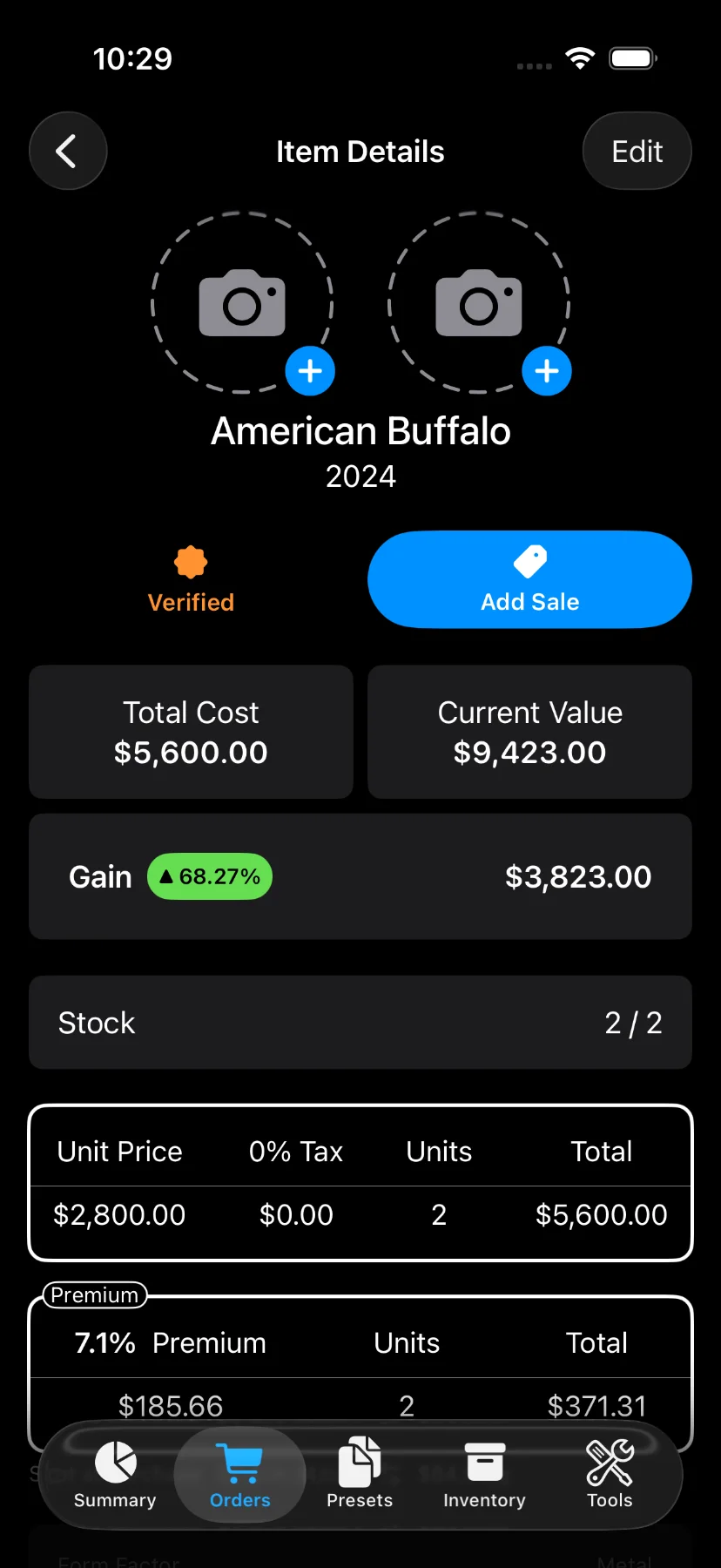
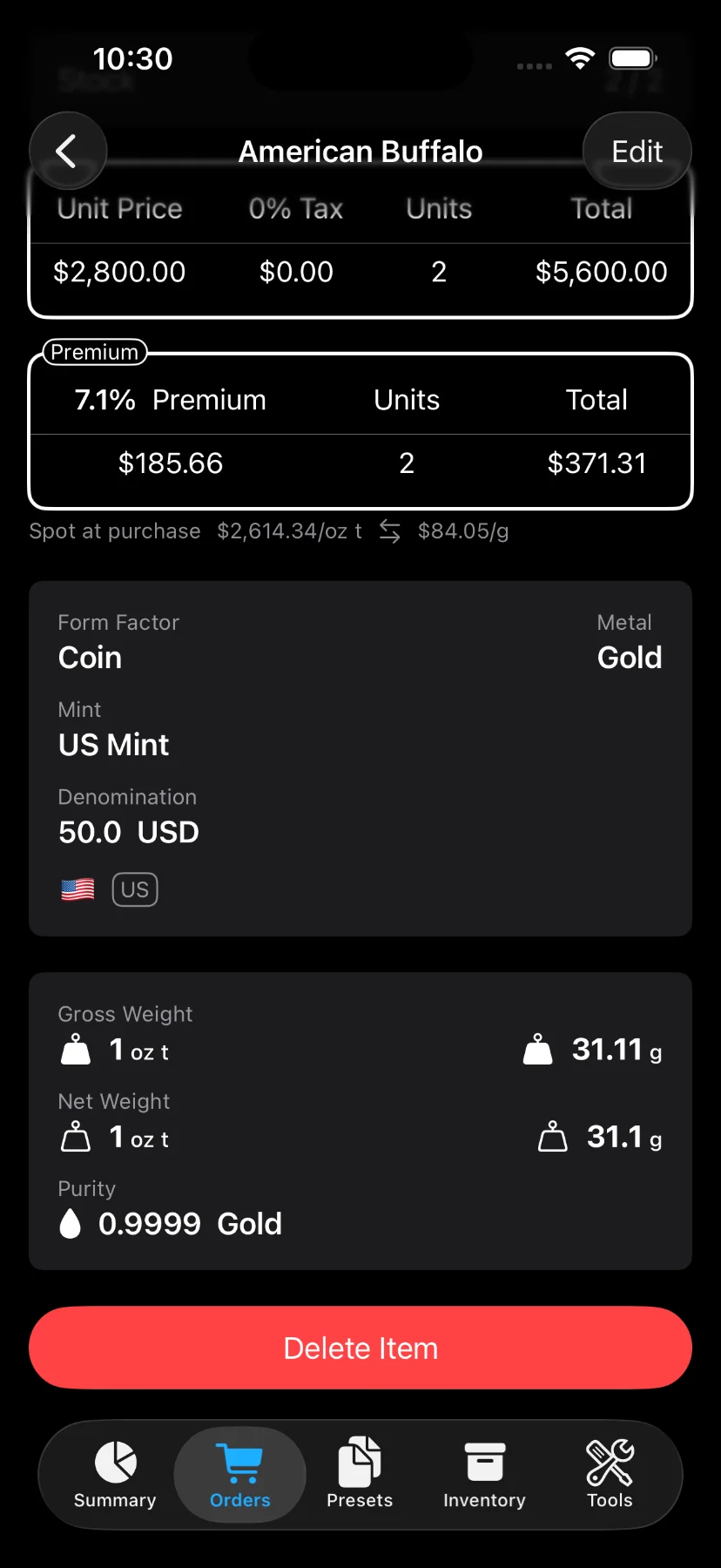
3) Tap on a purchase row to open the item details screen. From there you can:
- Mark the item as verified using the Verified toggle.
- Attach up to two photos.
- Review price breakdown, premium, bullion specifications, and grading information.
- Tap “Add Sale” to record a sale for this item.
- Tap “Edit” to modify the item.
- Tap “Delete Item” to remove it.
Sales tab
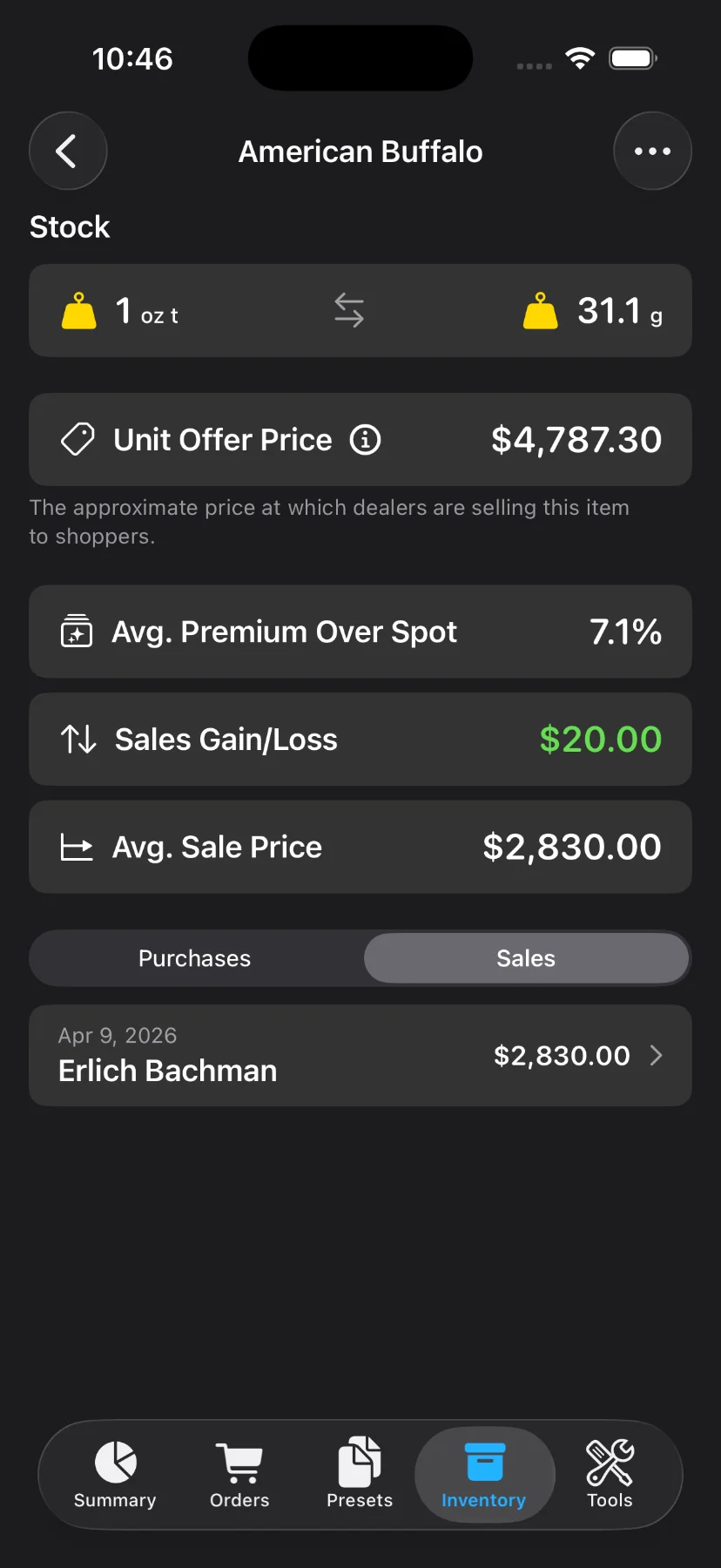
Each row in the Sales tab shows the sale date, recipient, and total amount including shipping.
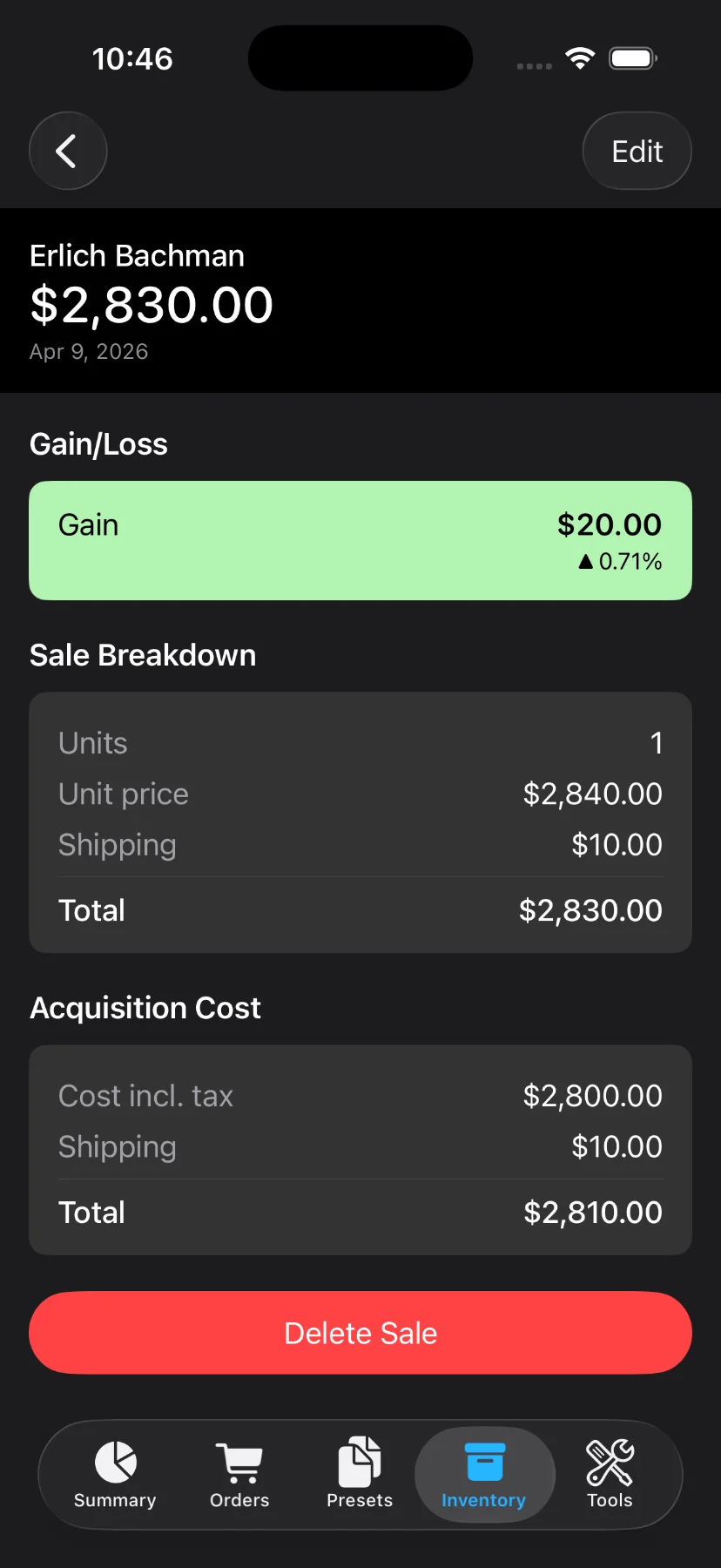
4) Tap on a sale row to open the sale details screen. It shows the gain or loss on the sale, a full breakdown of the sale (units, unit price, shipping), and the original acquisition cost. From there you can edit or delete the sale.