Modify/delete item
1 min read.
You can modify or delete items after they are created. To learn how to create an item, refer to the Create an Item guide.
1) Tap on an order on the “Orders” tab.
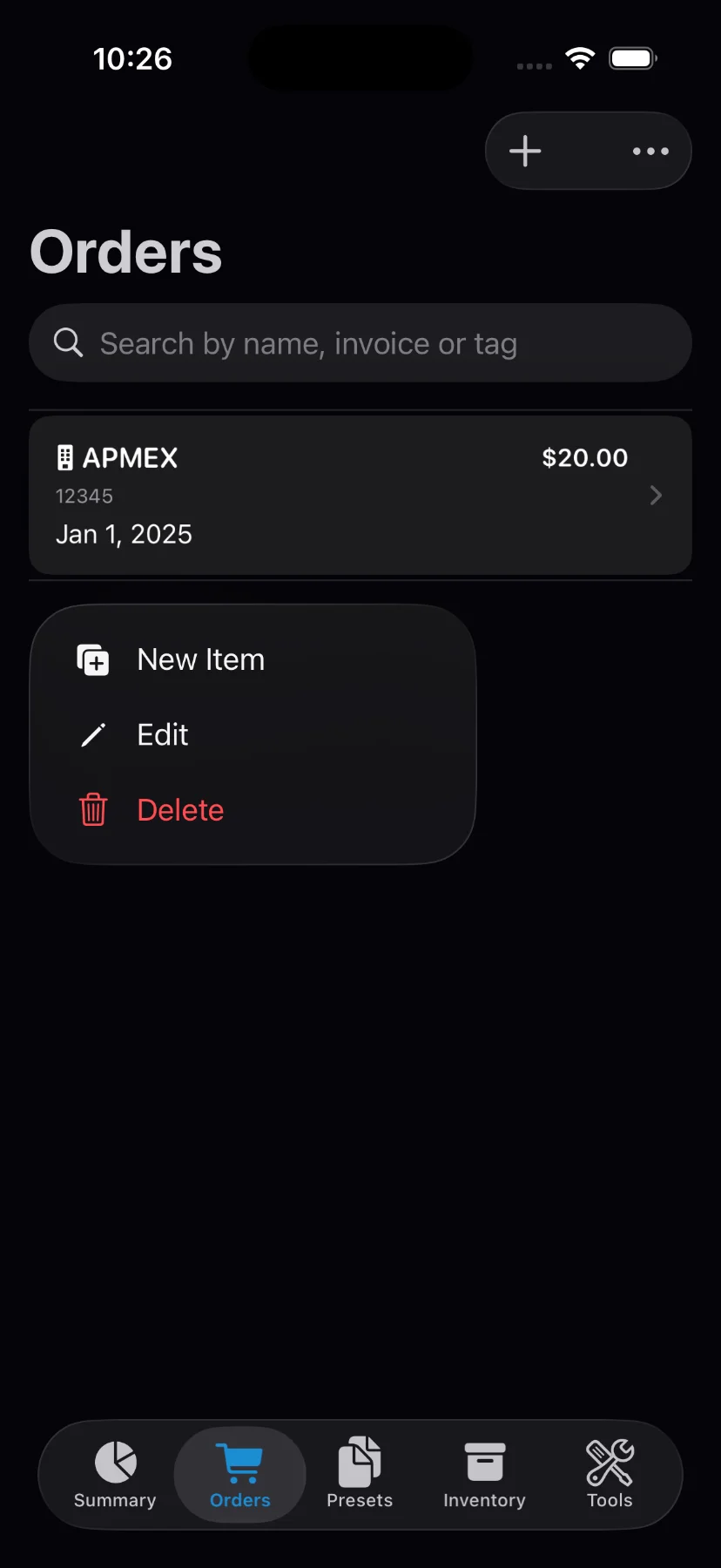
2) Tap on the “Items” button.
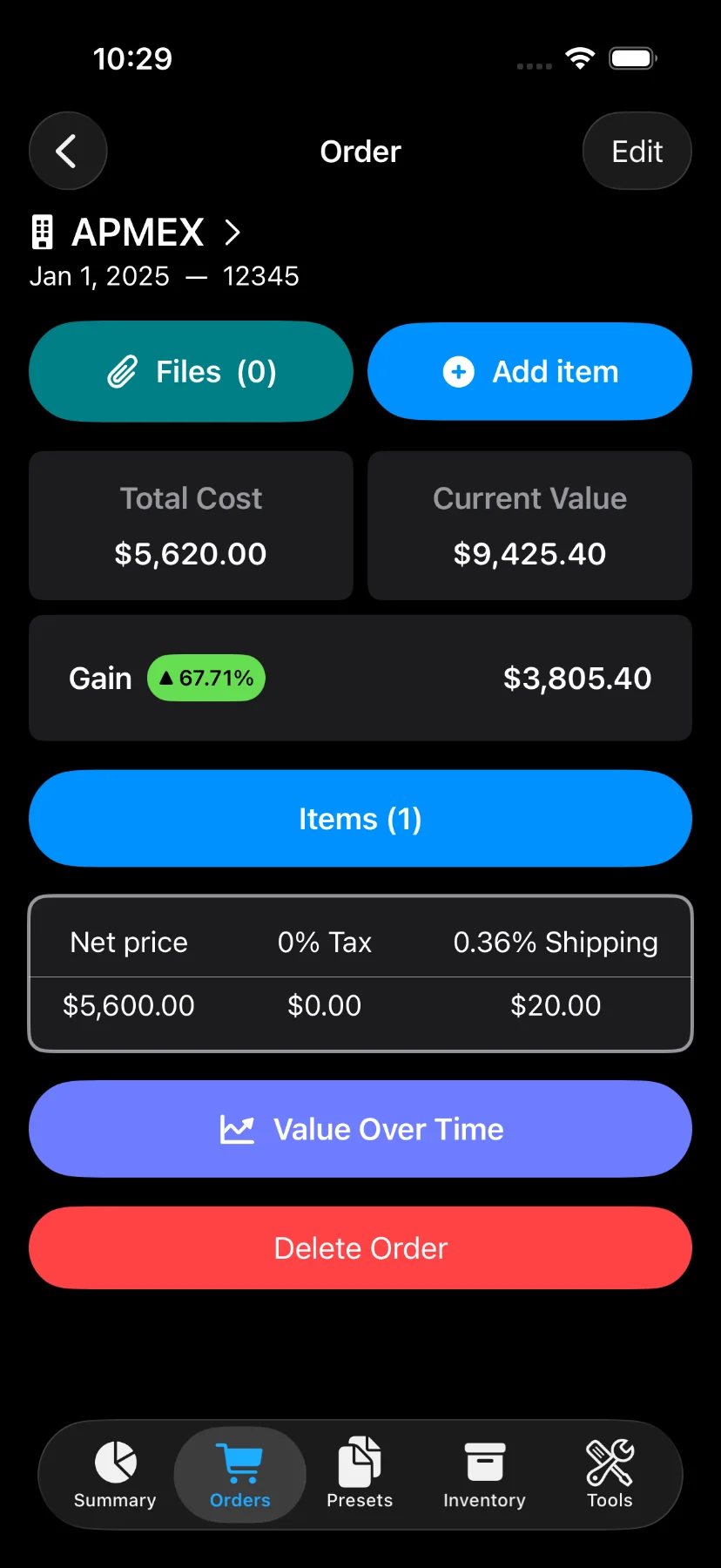
3) Now tap on the item you want to delete.
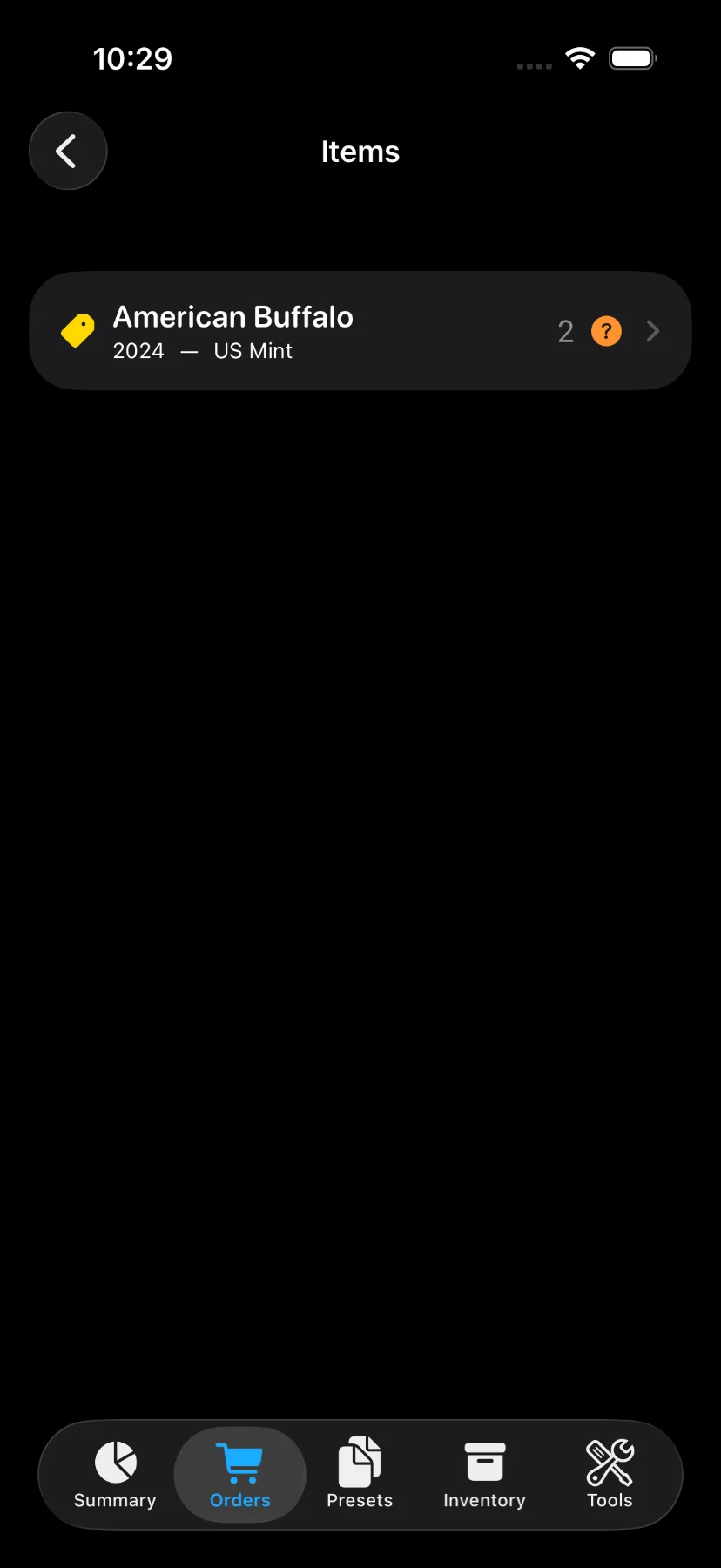
4) Tap on “Edit” button on the top right for modifying an item, or the “Delete Item” button at the bottom of the page for deletion.
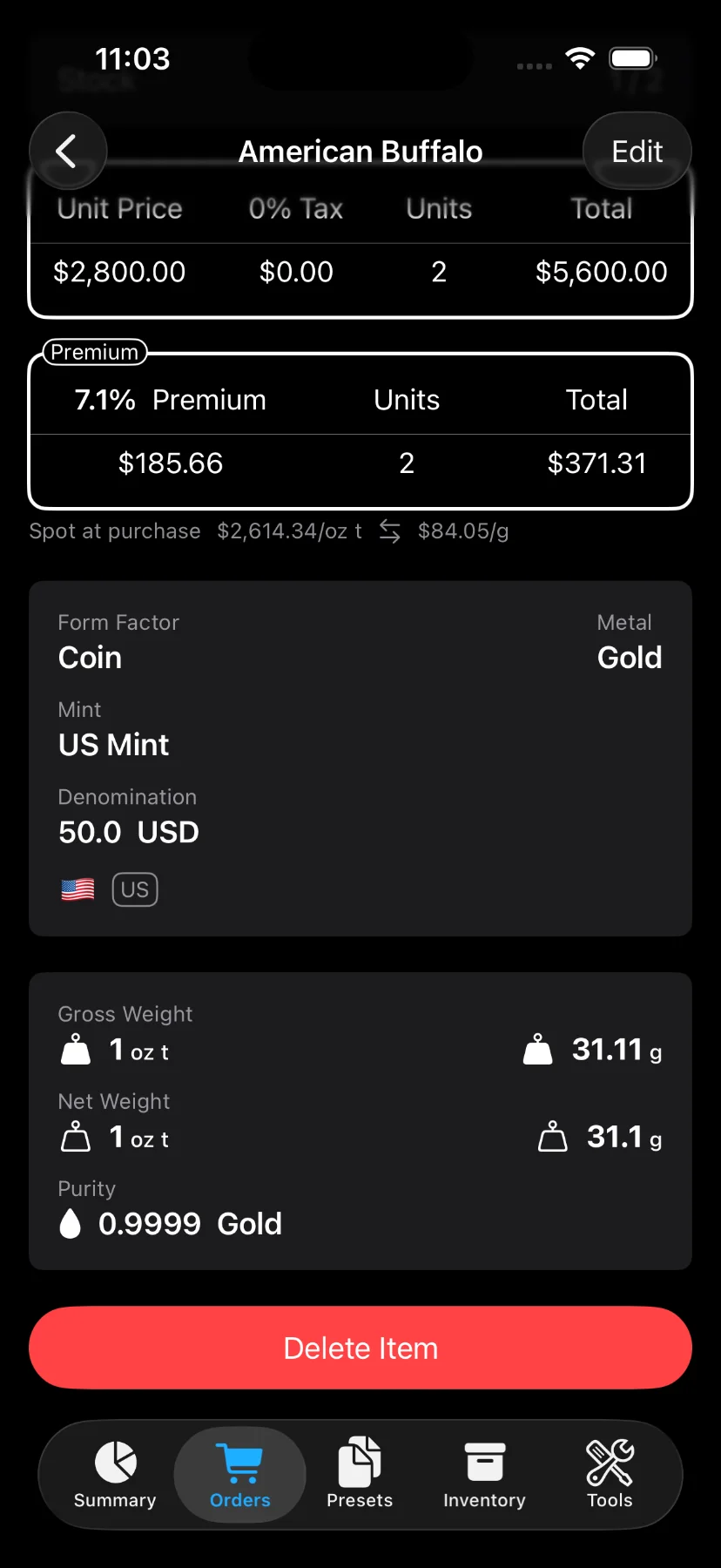
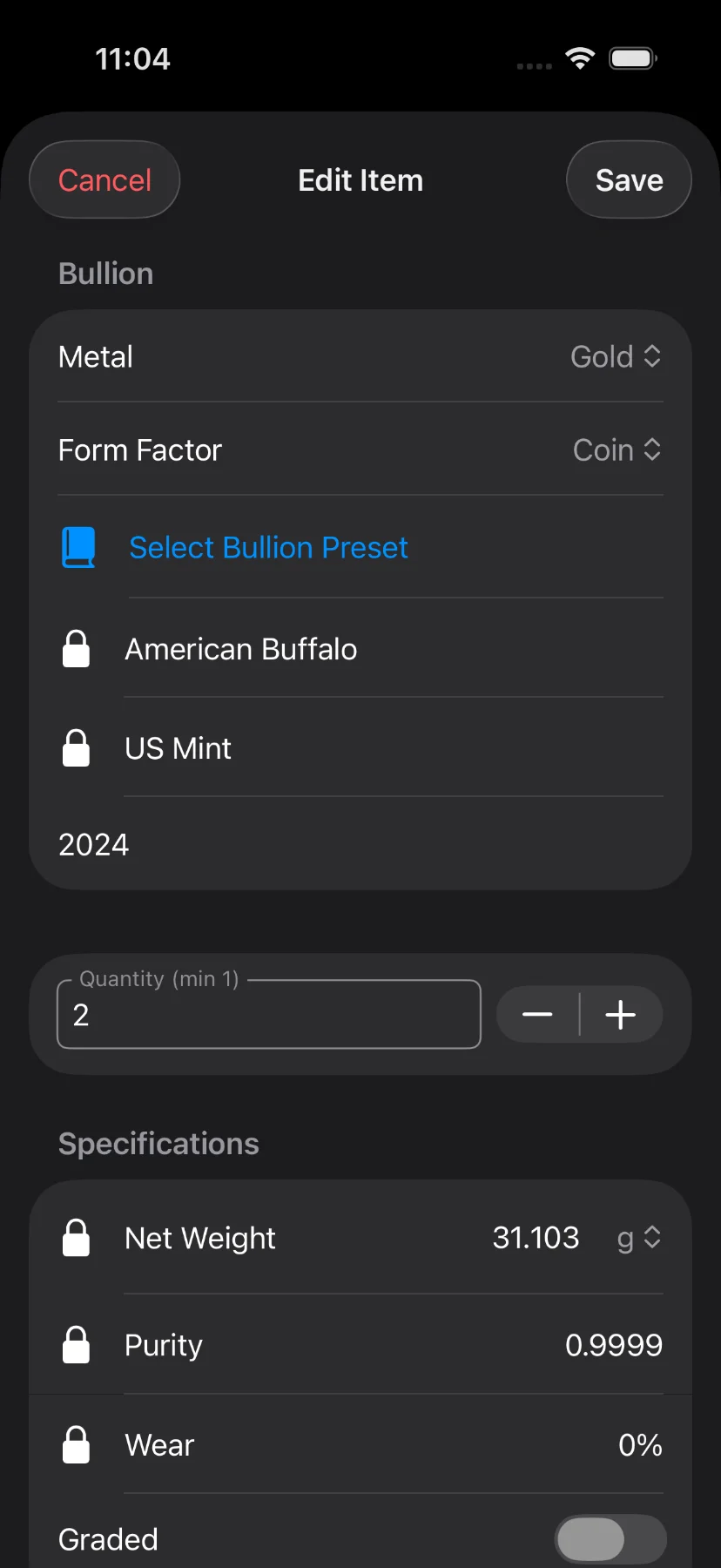
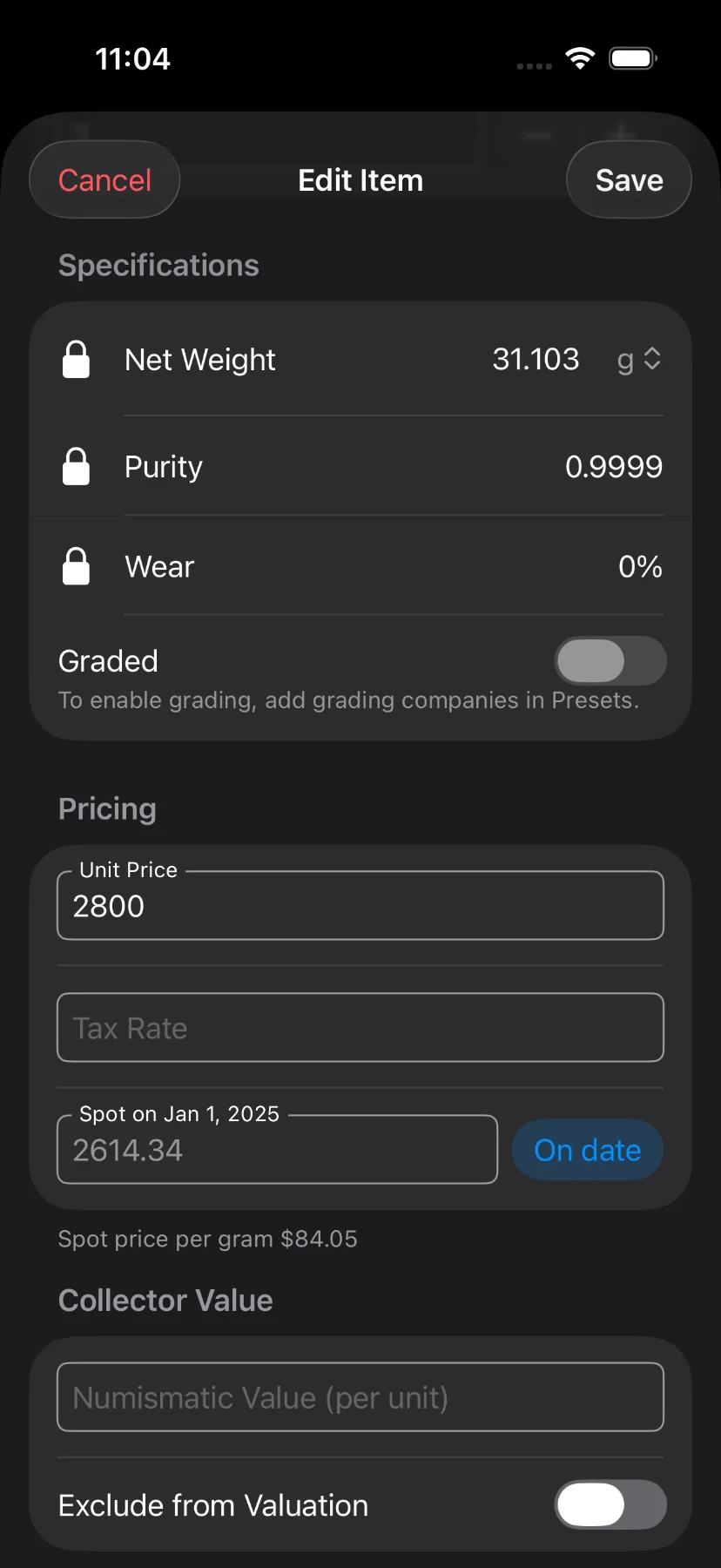
5) In case of modification, the input screen for updating an existing item consists of:
- Metal: Gold, Silver, Platinum, Palladium, or Copper.
- Form Factor: Bar, Coin, Round, or Jewelry.
- Bullion Preset: select from one of the included presets, or create your own. Selecting a preset locks name, mint, net weight, purity, and wear.
- Name: only editable when a preset is not selected.
- Mint: only editable when a preset is not selected.
- Year
- Quantity
- Net Weight: weight excluding alloy in troy ounces or grams. Only editable when a preset is not selected.
- Purity (aka fineness): represents the karat as a ratio. Only editable when a preset is not selected.
- Wear: percentage of loss due to circulation. It’s commonly used for junk silver. Only editable when a preset is not selected.
- Graded
- Unit price
- Tax
- Spot Price
- Numismatic Value (Optional): value per unit if this item is worth more than its melt value.
- Exclude from Valuation (Optional): when enabled, the item won’t count toward portfolio totals.
- Note
Some of the fields cannot be modified and selecting a different bullion preset is required.
6) Update the desired fields and save.