Modify/delete bullion preset
1 min read.
You can modify or delete bullion presets after they are created. To learn how to create a bullion preset, refer to the Create a Bullion guide.
1) Tap on the Catalog tab.
2) Select metal (Gold, Silver, Platinum, Palladium, or Copper) and form factor (Coin, Bar, Round, or Jewelry) to find an existing custom bullion preset.
3) Tap on a custom bullion preset.
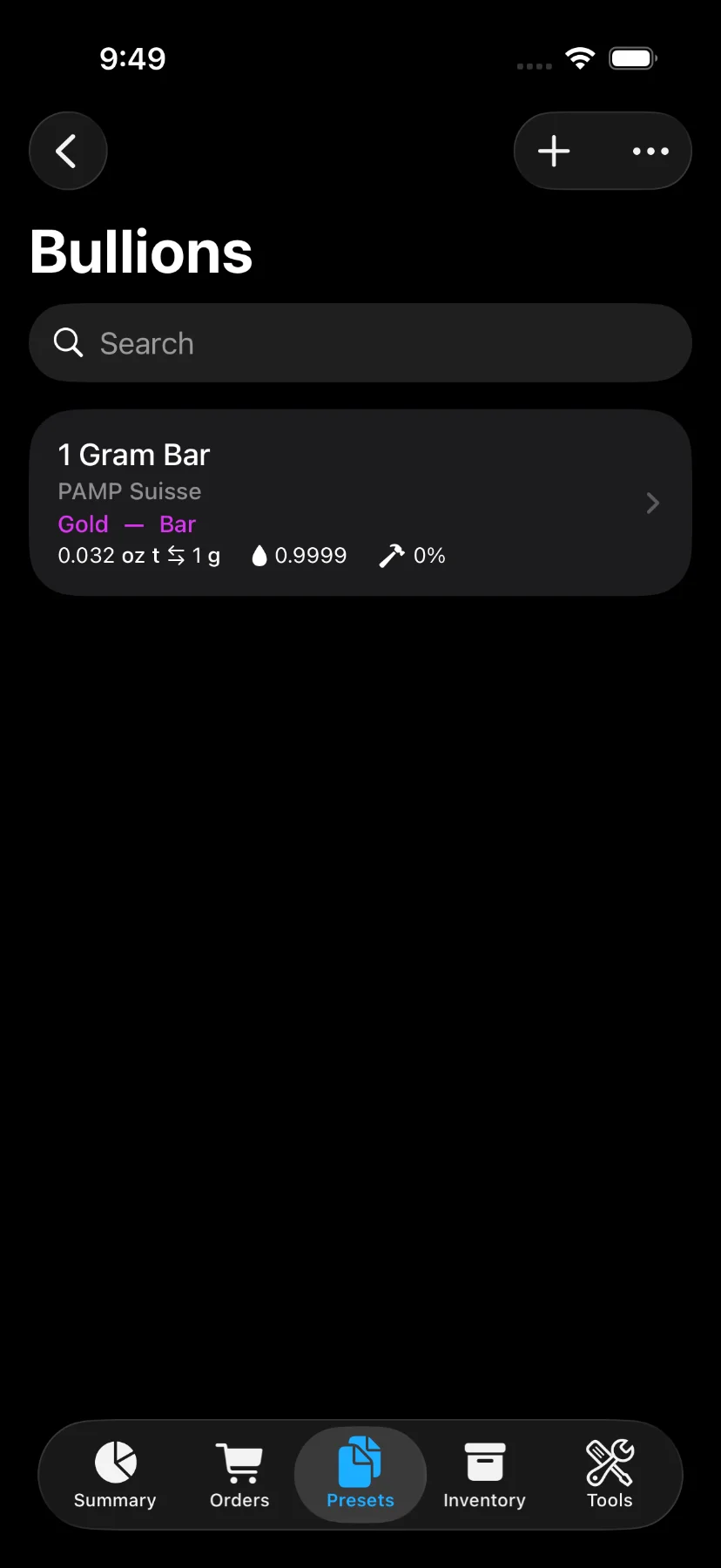
4) Tap on “Edit” button on the top right for modifying a bullion, or the “Delete Bullion” button at the bottom of the page for deletion.
You can also delete bullions from the “Catalog” page by swiping left or long-pressing a custom bullion preset.
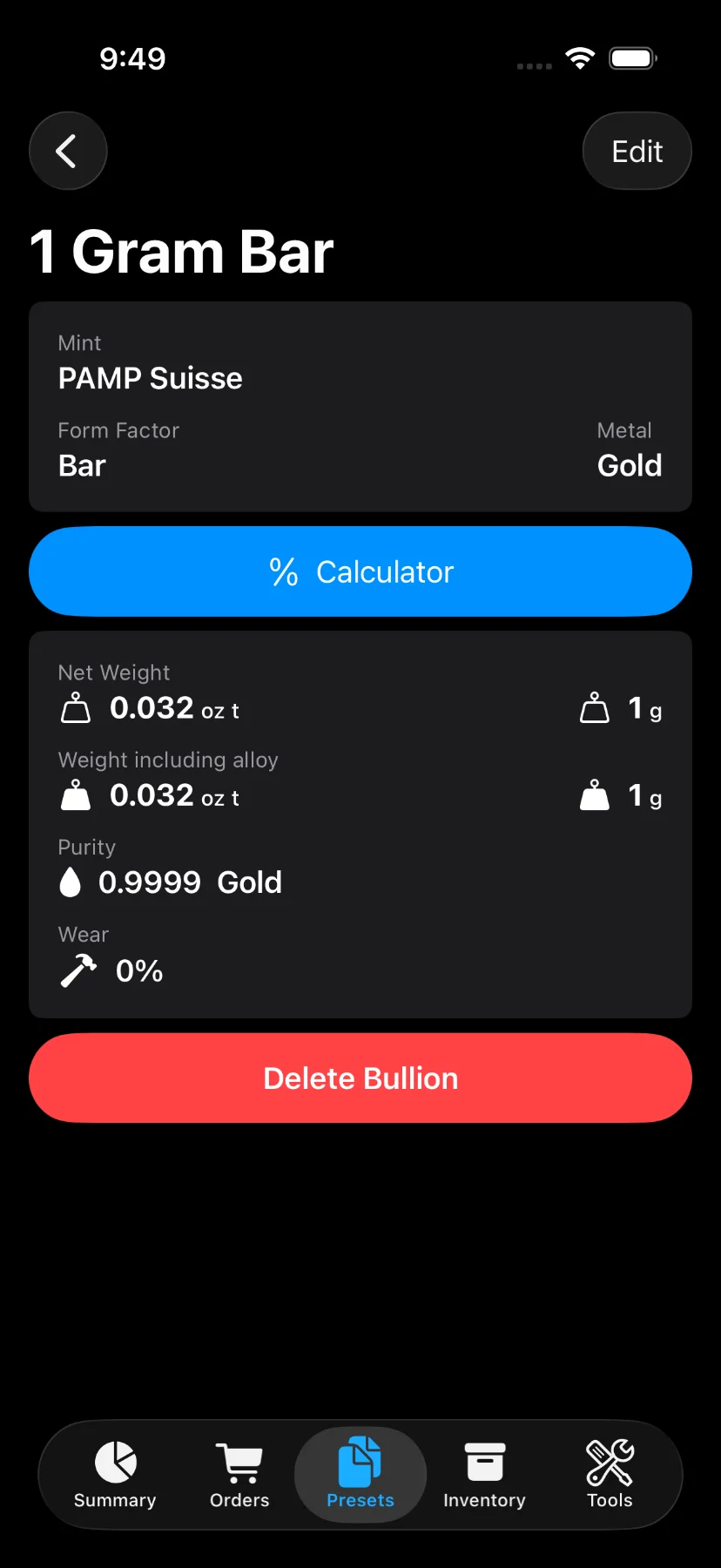
5) In case of modification, the input screen for updating an existing bullion consists of:
- Name
- Mint
- Purity (aka fineness): represents the karat as a ratio. For Gold or Silver jewelry, shown as a picker (e.g. 24K, Sterling).
- Wear: percentage of loss due to circulation. It’s commonly used for junk silver.
- Metal Content: weight excluding alloy in troy ounces or grams.
- Finish (Optional): Bullion, Brilliant Uncirculated, Proof, or Colorized. Not shown for Jewelry.
- Face Value (Optional)
- Face Value Currency (Optional)
If the bullion is assigned to items, a confirmation is required before saving. The change will be applied to all items using this preset.
A bullion preset cannot be deleted if it is assigned to items.
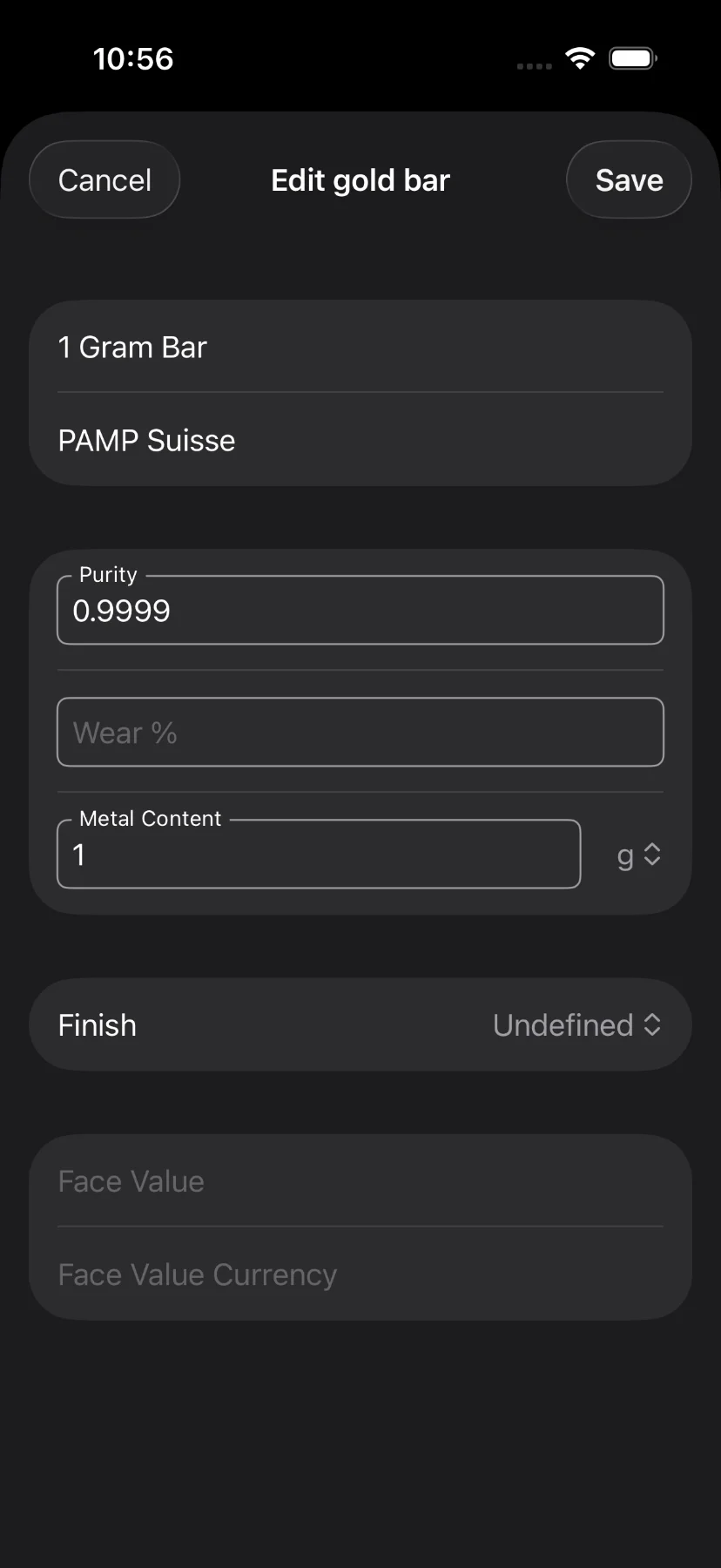
6) Update the desired fields and save.