Create a sale
1 min read.
An item is required before you can record a sale. Follow the Create an Item steps and come back if you haven’t created an item yet.
The concept of “Sale” in Precious Metals Manager represents a transaction with a third-party organization or individual. In other words, a sale refers to a decrease in the stock of a particular item, whether for a profit, a loss, or as a gift.
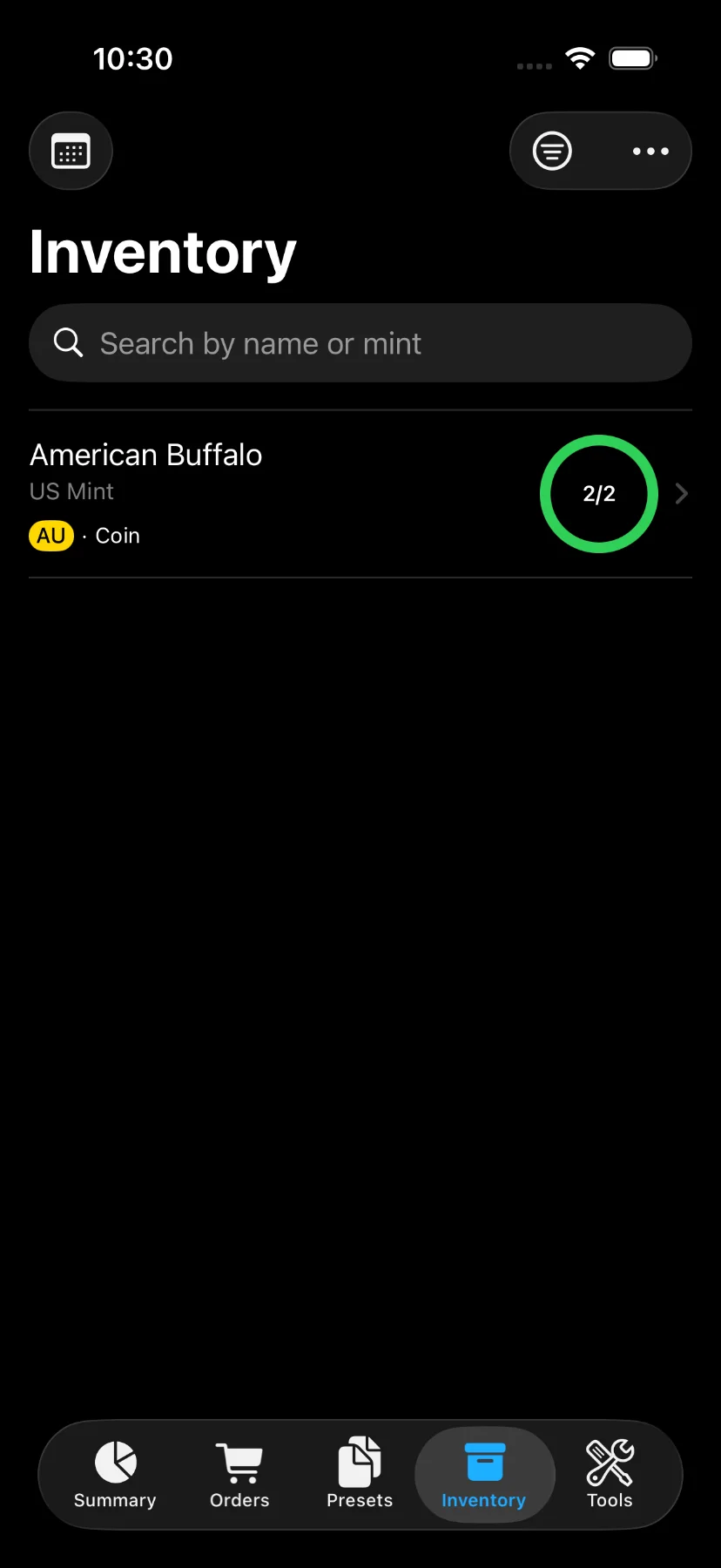
1) Tap on an inventory item on the “Inventory” tab.
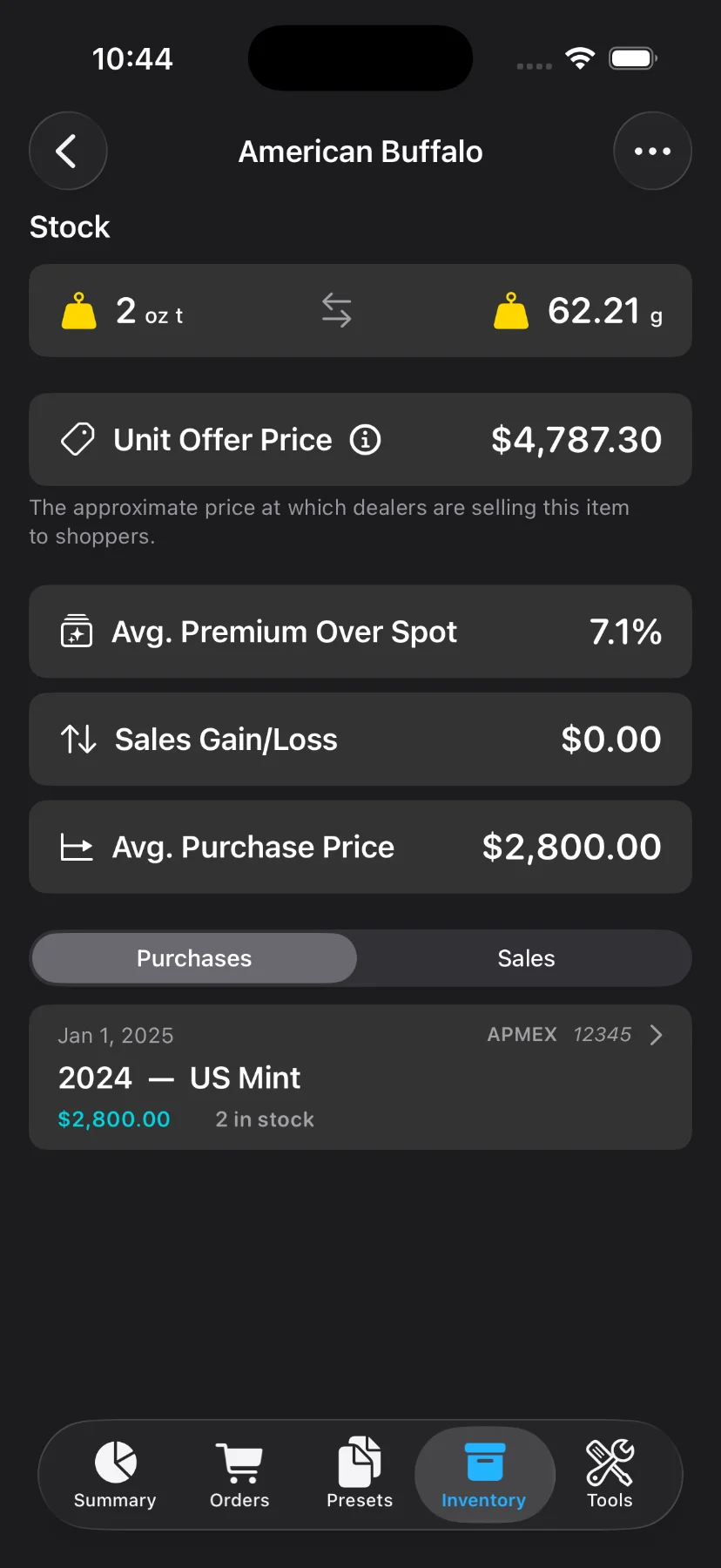
2) On the inventory item page, purchases and sales are shown. Tap on one of the purchases to see the item details.
Alternatively, you can see the item details by tapping on an order in the “Orders” tab, then tapping on “Items,” and selecting a particular item.
3) Tap on “Add Sale”.
You can also create a sale by long-pressing an item on the order items page.
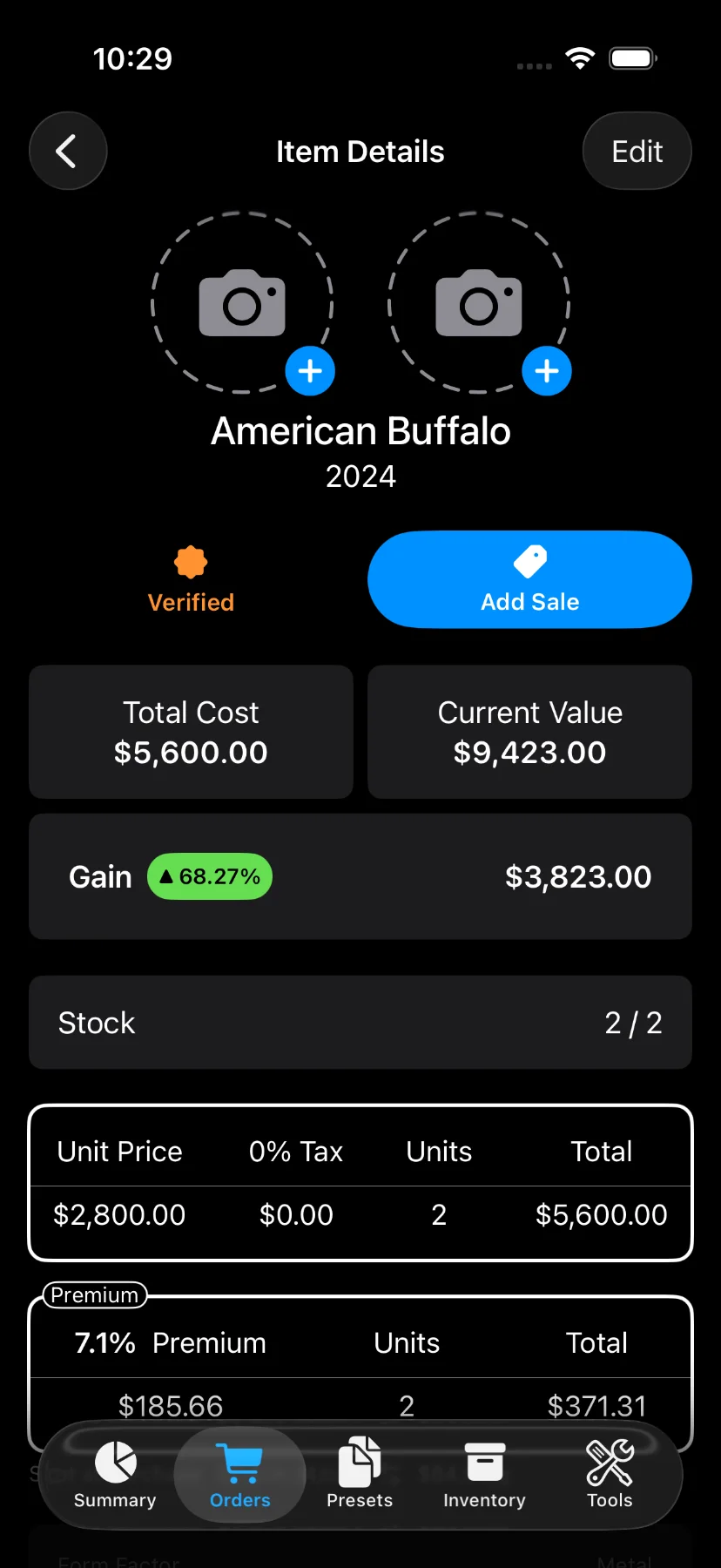
4) The input screen for registering a new sale consists of the following fields:
- Recipient (Optional)
- Quantity: capped at the number of units still available (total quantity minus already sold).
- Unit price (Optional)
- Shipping (Optional)
- Sale date: defaults to today. Cannot be before the item’s order date or after today.
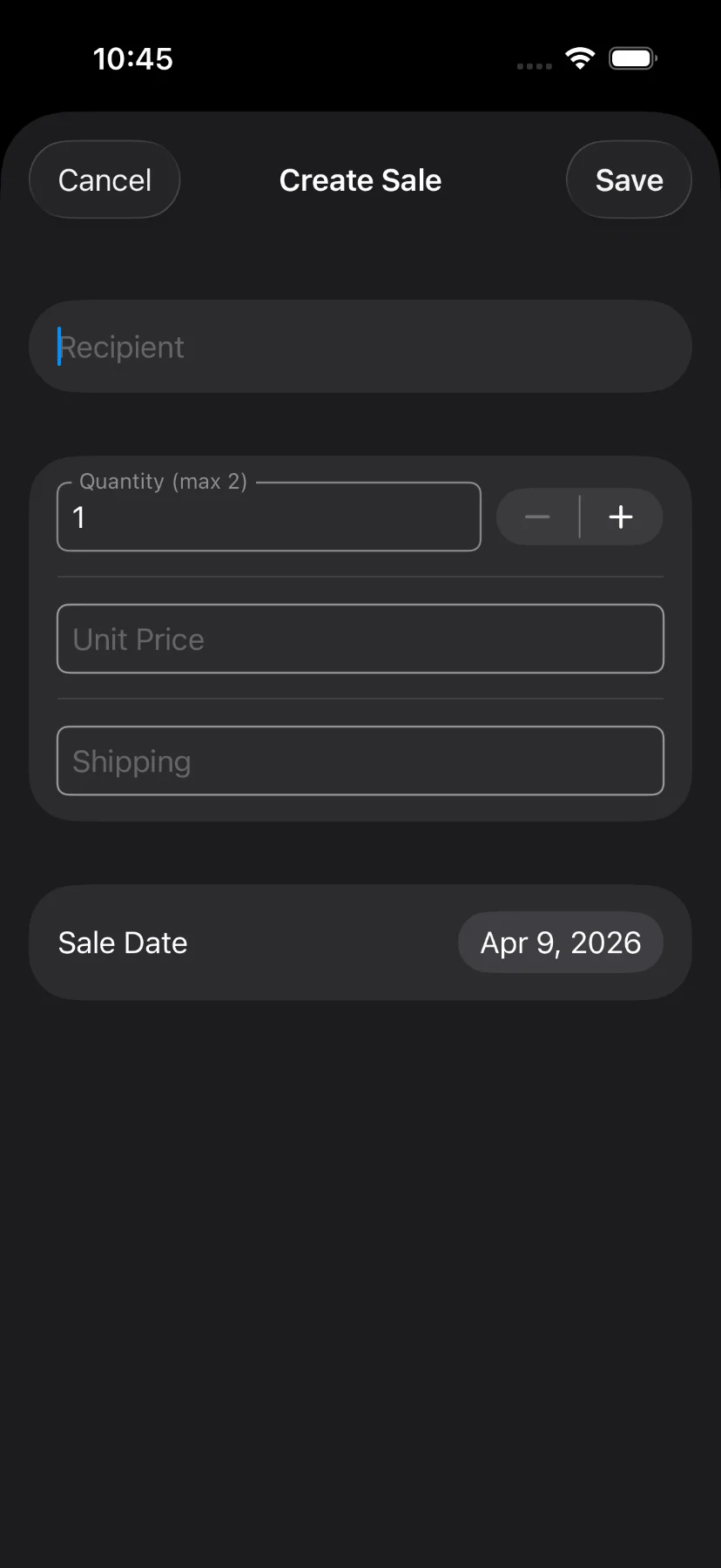
5) Tap on “Save” to register the sale.
6) Review your sales.
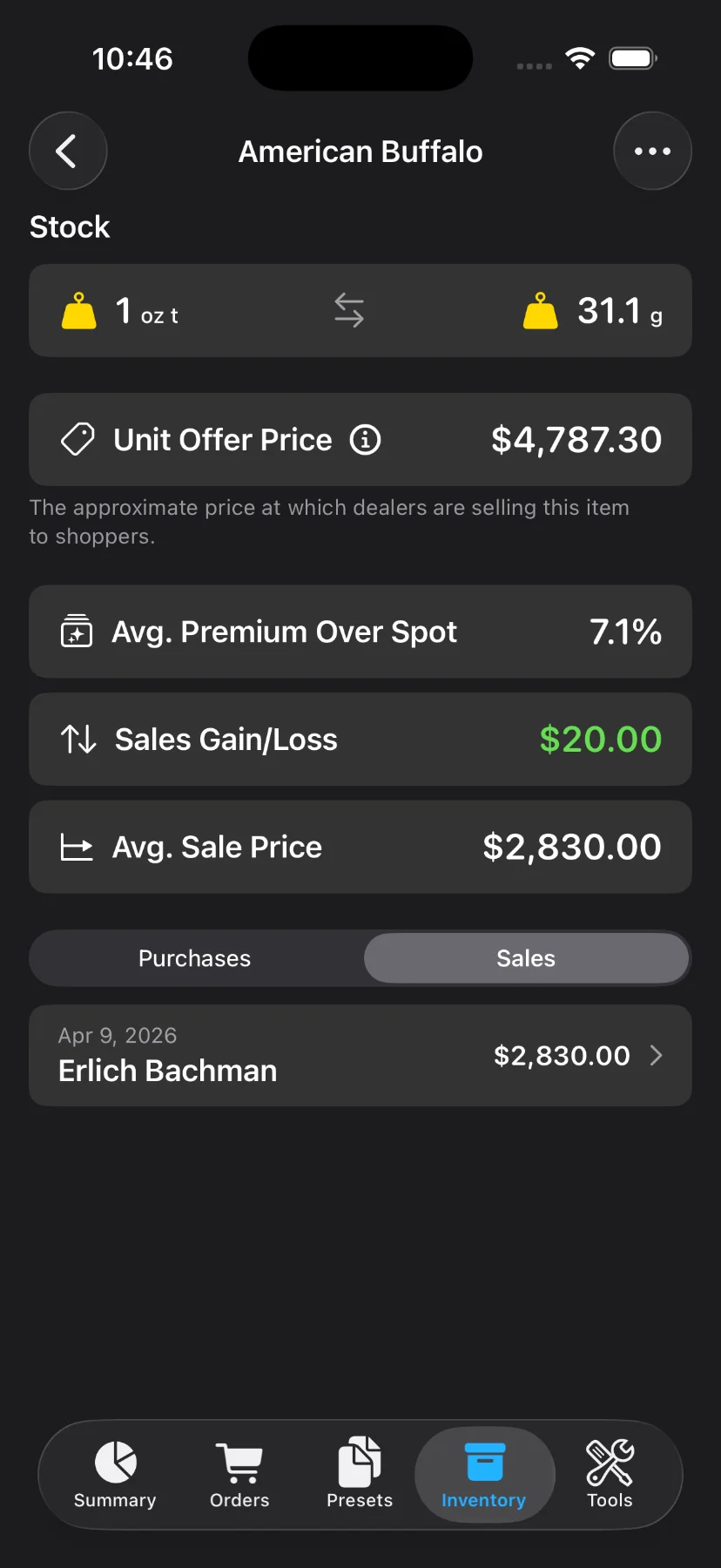
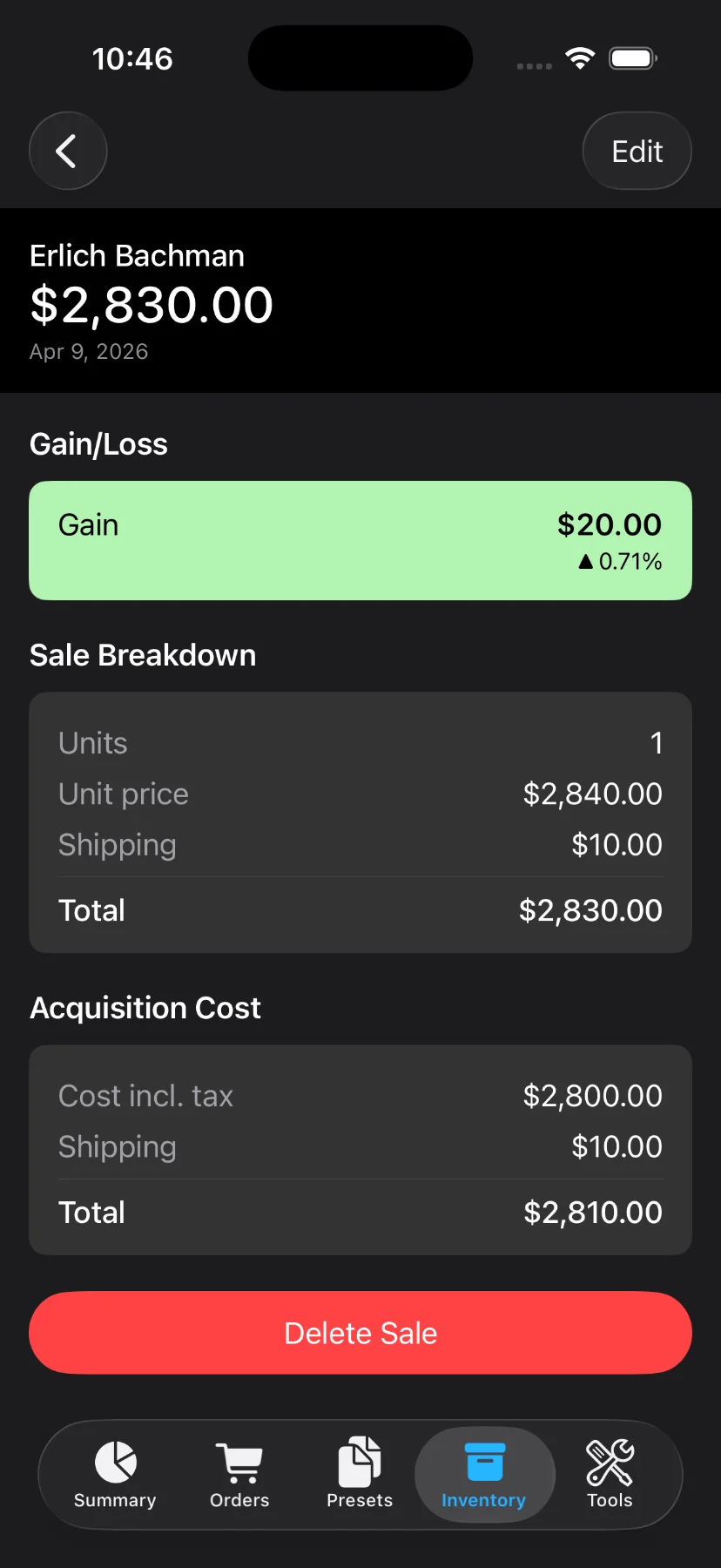
Once you have saved a sale, you can review it from the item’s page on the “Inventory” tab.