Create a product preset
1 min read.
The concept of “Product” in Precious Metals Manager represents either a coin, bar, round or piece of jewelry.
1) Tap on the “Presets” tab.

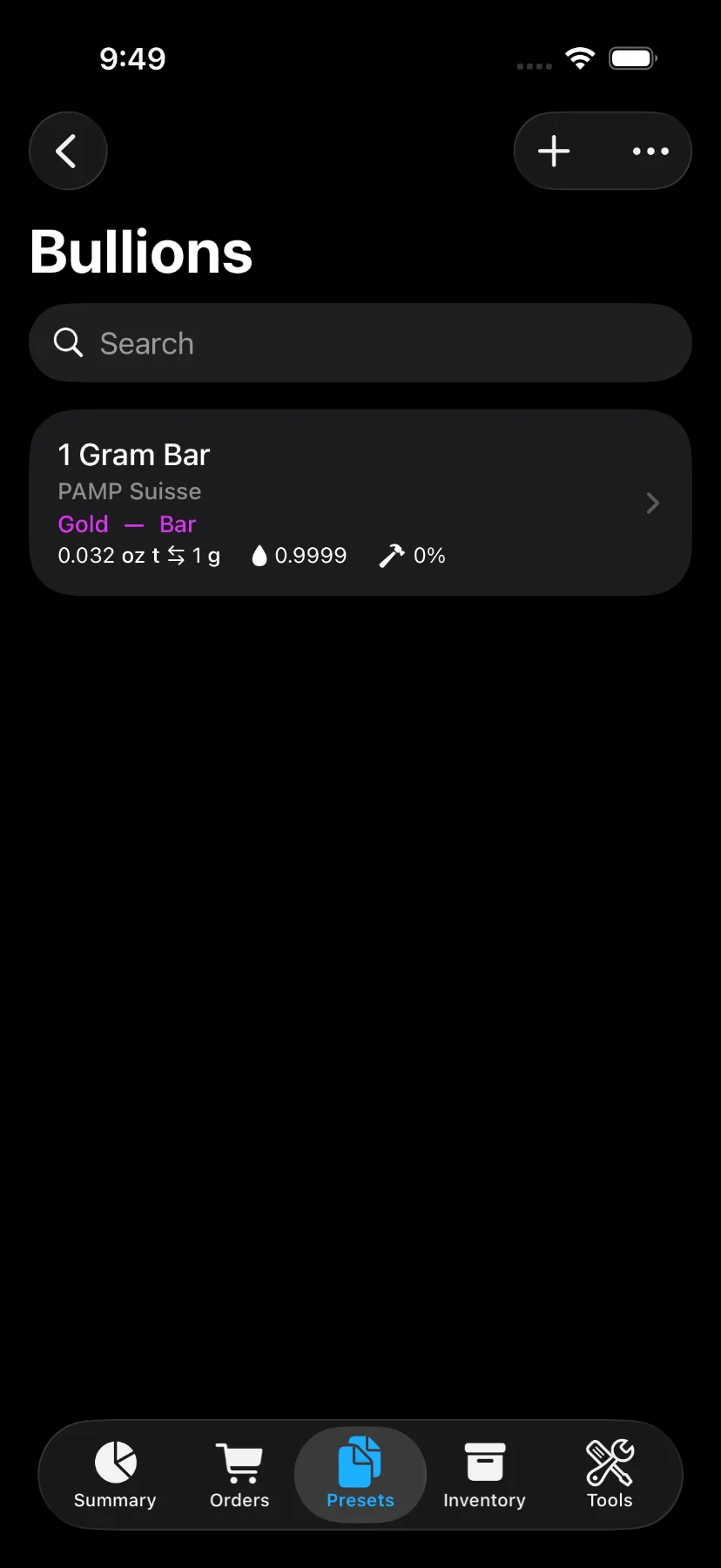
2) Tap on “Products”, then tap the “+” button to open up the page to create a product preset.

Alternatively, you can create a product preset while creating an item. The metal and form factor are selected during the item creation process.


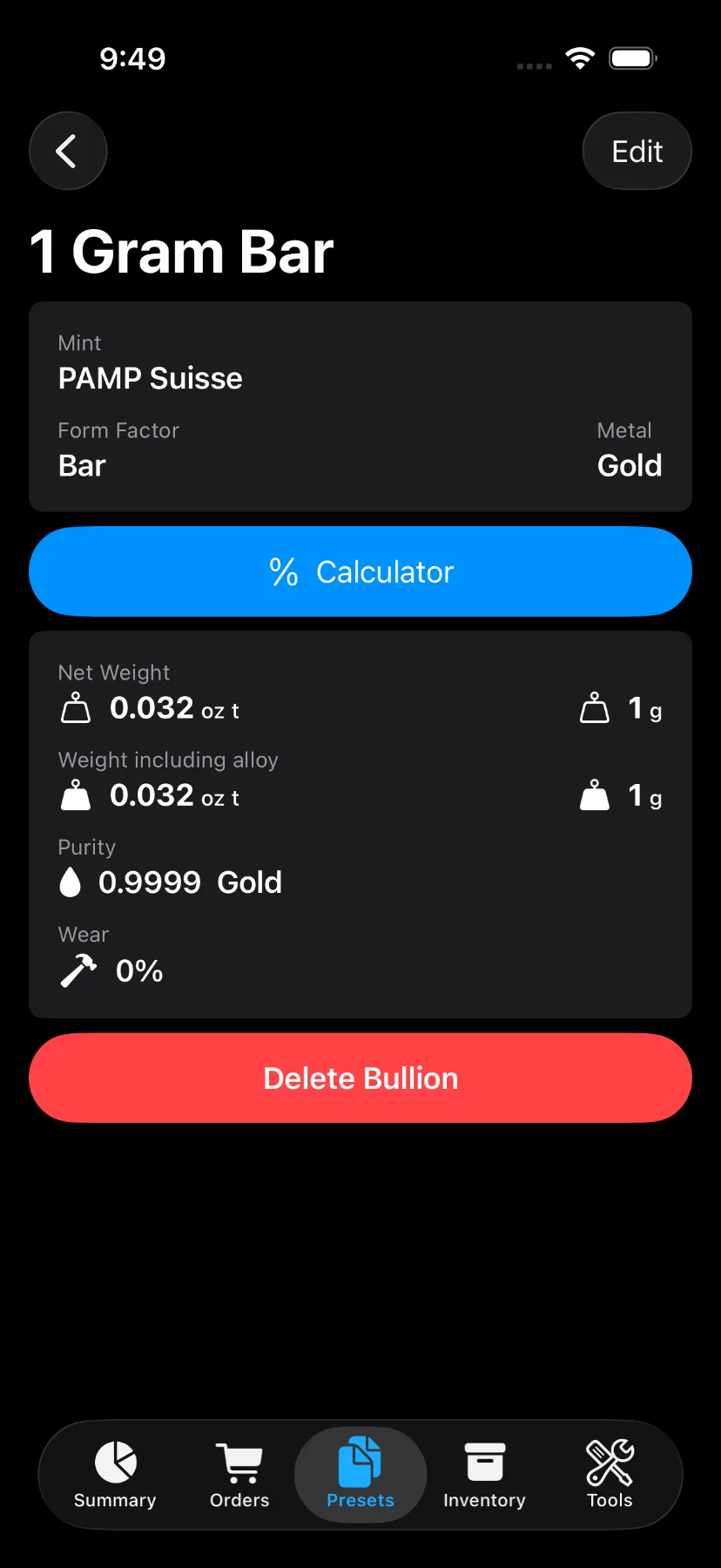
3) The input screen for registering a new product consists of:
- Name (Optional)
- Mint (Optional)
- Purity (aka fineness): represents the karat as a ratio. For Gold or Silver jewelry, shown as a picker (e.g. 24K, Sterling).
- Wear (Optional): percentage of loss due to circulation. It’s commonly used for junk silver.
- Metal Content: weight excluding alloy in troy ounces or grams.
- Finish (Optional): Bullion, Brilliant Uncirculated, Proof, or Colorized. Not shown for Jewelry.
- Face Value (Optional): nominal face value of the coin or bar.
- Face Value Currency (Optional): currency of the face value (e.g. USD).
Creating an item without selecting a product preset automatically creates a product using the item’s attributes.

4) Tap on “Save” to register the product.
5) Review your product presets.
Once you have saved a product, you can select it as a preset when you create a new item and review it from the “Presets” tab.