Automatic backups and restore
2 mins read.
Precious Metals Manager backs up your portfolio automatically, so you can get your data back if something is deleted by mistake. There’s nothing to set up.
Automatic backups are available to everyone, including the free plan.
How Automatic Backups Work
- Once a day, when you open the app, it saves a backup of all your data and order files.
- Backups go to iCloud Drive. If iCloud Drive is off, they’re saved on the device instead.
- The last 14 backups from each device are kept. Older ones are deleted automatically.
You’ll find the backup status under Settings → Automatic Backups:
- Last Backup: when the most recent backup was made.
- Location: iCloud Drive or This Device.
- Back Up Now: make a backup right away, for example before a big edit.
If a backup fails, the reason is shown in red below the section.
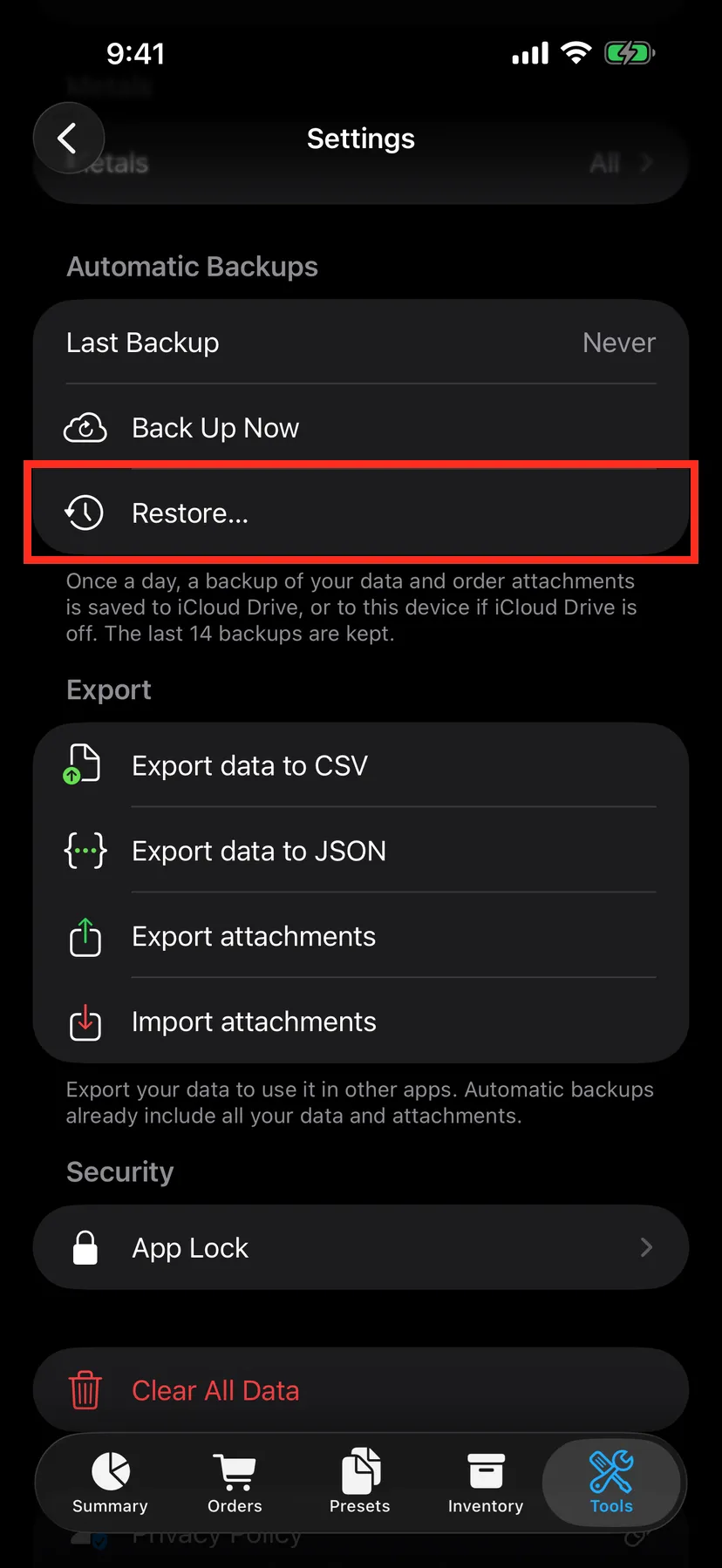
To open Settings, tap Tools → Settings on iPhone, or Settings in the sidebar on iPad and Mac.
Restore a Backup
- Go to Settings → Automatic Backups and tap Restore…
- Pick a backup from the list. Each one shows the date and the device it came from. Backups with a cloud icon are still in iCloud and will be downloaded first.
- Choose how to restore:
- Restore Missing Data: adds back anything that’s missing and keeps everything you have now. This is the safe option, and the right one for most cases.
- Replace All Data…: deletes all your current orders, items, sales and files on all your devices and replaces them with the backup. This can’t be undone, so you’ll be asked to confirm.
When it finishes, the app tells you how many records and files were restored.
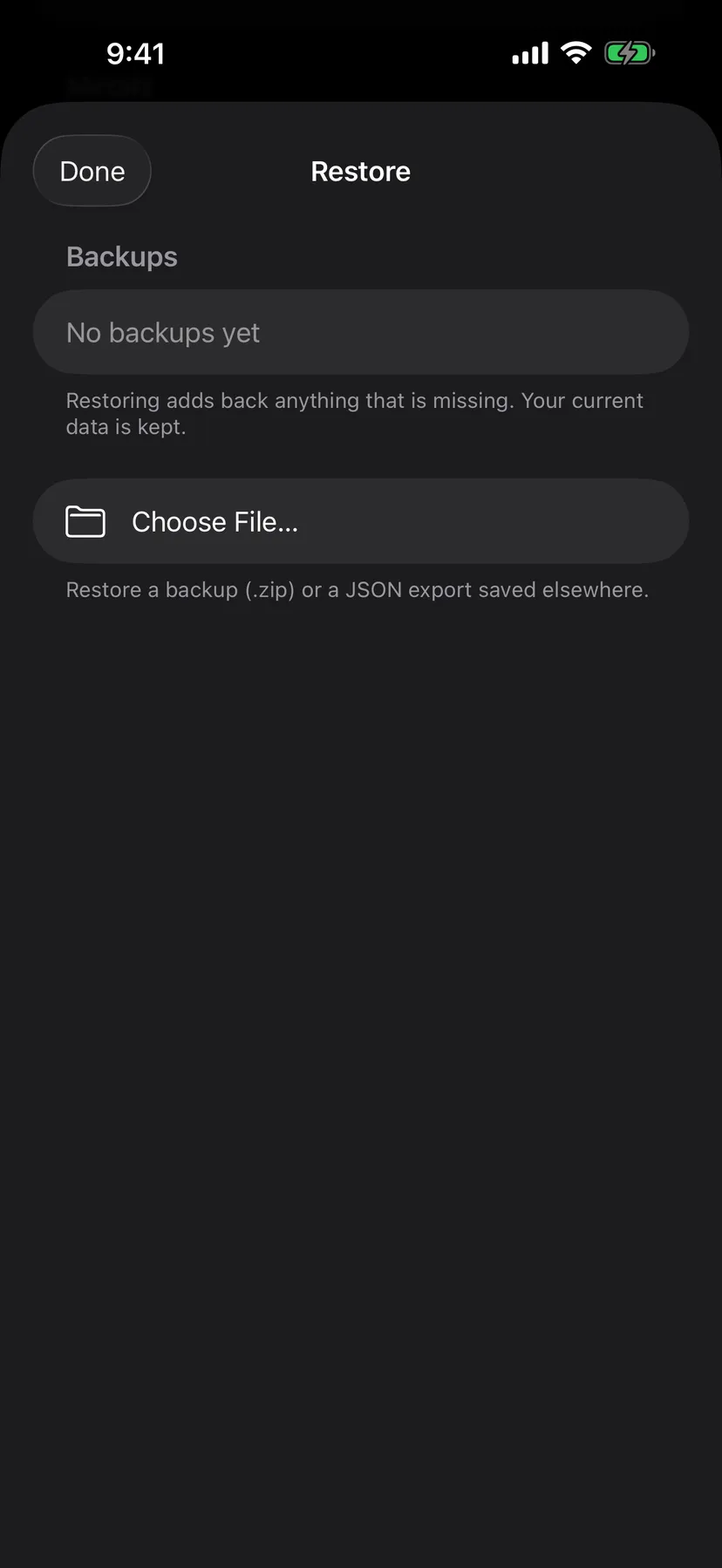
If iCloud is still syncing, the app asks you to wait before restoring. Restoring while data is downloading can create duplicates.
To delete a backup you no longer need, swipe left on it, or long-press it (right-click on Mac).
Restore From a File
You can also restore a backup or a JSON export saved somewhere else, such as the Files app or a USB drive:
- Go to Settings → Automatic Backups → Restore…
- Tap Choose File…
- Select a backup .zip file or a .json file created with Export data to JSON.
Backups vs. Sync
iCloud sync keeps your devices identical, so a deletion on one device is deleted everywhere. Backups are snapshots in time, and they’re how you get back something that sync has already removed.
Have questions or feedback? Reach out via the app’s Send feedback section!